Excel is not just a powerhouse for handling numbers—it’s also an incredibly flexible tool for working with text. Whether you’re cleaning up messy data, standardizing formats, or combining information from multiple columns, Excel offers a wide variety of text functions that make it easy to manipulate and manage text data efficiently. In this article, we’ll walk through some of the most useful text functions in Excel, along with examples to illustrate how you can use them in your work.
1. CONCATENATE/CONCAT: Combining Text Strings
CONCATENATE (or the more modern CONCAT) allows you to join two or more text strings together. This is particularly useful when you need to combine data from different cells, such as merging first and last names.
Example:
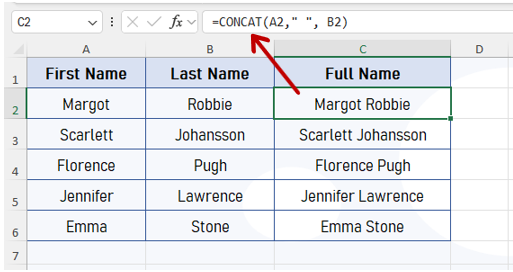
In the Example, Column A and B contains first name and last name. In the Column C, first name and last name are joined together by using the CONCAT function. Between A2 and B2 reference, ” ” is used to insert a space between two words. IF you are using the old Excel versions (prior to 2016), you have to use the CONCATENATE Function.
Note: CONCATENATE cannot handle array. For example, if you have too many cell values to join, you have to select every single cell by separating each by comma. To overcome this, CONCAT function was launched in 2016 version which has the capability to handle array. In CONCAT function, to join the cell values from A1 to K1, you can simply use =CONCAT(A1:K1).
2. TEXT: Formatting Numbers as Text
The TEXT function is a powerful tool for formatting numbers or dates as text. You can define the format using custom formatting codes, making it perfect for tasks like adding leading zeros to a number or formatting dates in a specific way.
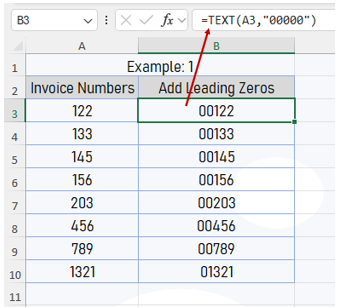
In the B3 cell, =TEXT(A3,”0000″) formula is used to change the formatting of the values given in column A. It has made the numbers 5 digit by adding the leading zeros to it.
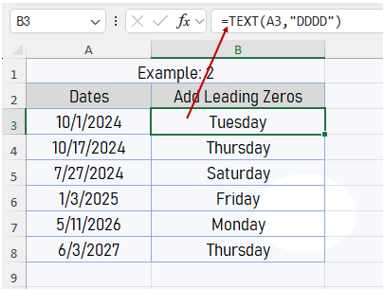
In B3 cell, =TEXT(A3,”DDDD”) formula is used to display the days on these specific dates.
3. LEFT, RIGHT, and MID: Extracting Substrings
These functions are used to extract specific portions of text from a larger string.
- LEFT: Extracts a number of characters from the start of a text string.
- RIGHT: Extracts a number of characters from the end of a text string.
- MID: Extracts characters from the middle of a text string.
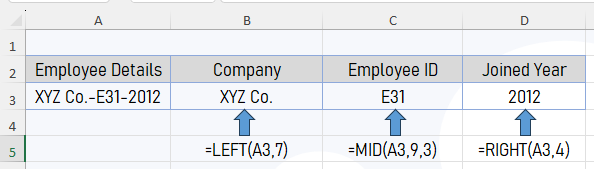
In above example, in A3 cell, there is combined information of an employee (company, employee ID and joined year). Using the LEFT, MID and RIGHT Function, information is extracted from the left, mid and right of the text.
=LEFT(A3,7) extracts 7 characters from the left that is XYZ Co.
=MID(A3,9,3) extracts 3 characters from the mid, starting from the 9th character position which is E31 in the example.
=RIGHT(A3,4) extracts the 4 characters from the right side of the text that is 2012.
4. LEN: Counting Characters in a String
The LEN function returns the number of characters in a text string, which is helpful for analyzing text length or validating data input.
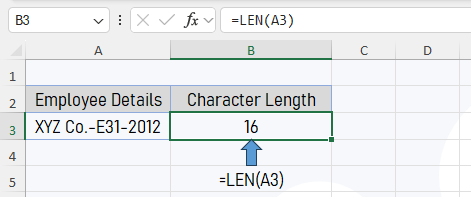
This formula counts the number of characters in cell A3, which is 16.
5. FIND and SEARCH: Locating Text Within a String
Both FIND and SEARCH functions locate the position of a specific text within a string. The key difference is that FIND is case-sensitive, while SEARCH is not.
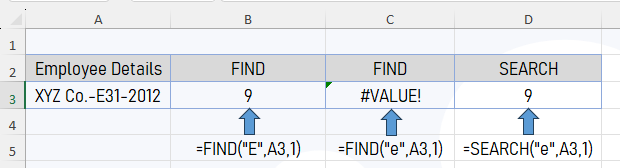
In B3 cell, =FIND(“E”,A3,1) finds the character position of the letter E in the text of cell A3. The result is 9 because the letter or character E is in the 9th position. In C3 cell, same formula is used by changing the capital E to small e. The result is given as #VALUE! error because Find function is case sensitive. In D3 cell, Search function has given the character position of letter E, regardless of the casing of the letter. Because Search function is non case sensitive.
6. SUBSTITUTE: Replacing Text
The SUBSTITUTE function replaces one or more instances of a particular text with another string. It’s great for data cleaning when you need to correct or replace certain values.
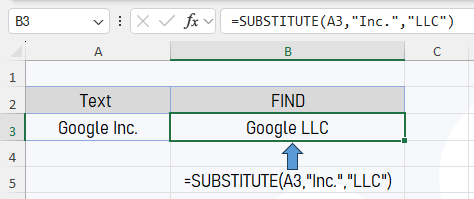
In the example, in B3 cell, =SUBSTITUTE(A3,”Inc.”,”LLC”) formula is used. This has replaced the word Inc. by LLC.
7. TRIM: Removing Extra Spaces
The TRIM function removes all extra spaces from a text string, leaving only single spaces between words. This is particularly useful for cleaning up imported data that may have inconsistent spacing.
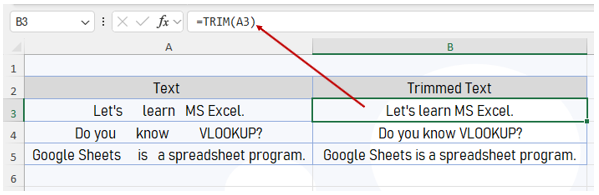
In the example, the sentences in column A have improper spacing. In column B, all extra spaces have been removed by TRIM function by keeping only one space between words.
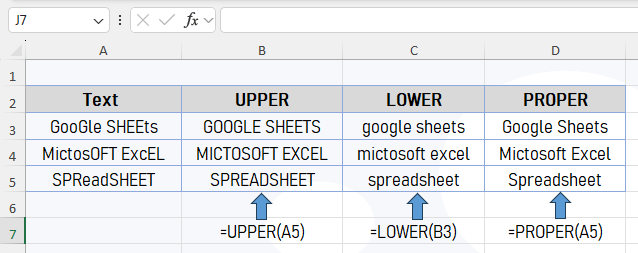
8. UPPER, LOWER, and PROPER: Changing Text Case
- UPPER: Converts all letters in a text string to uppercase.
- LOWER: Converts all letters to lowercase.
- PROPER: Capitalizes the first letter of each word in a text string.
9. TEXTJOIN: Combining Text with Delimiters
The TEXTJOIN function is a more versatile version of CONCAT, allowing you to combine text strings with a specified delimiter and the option to ignore empty cells.
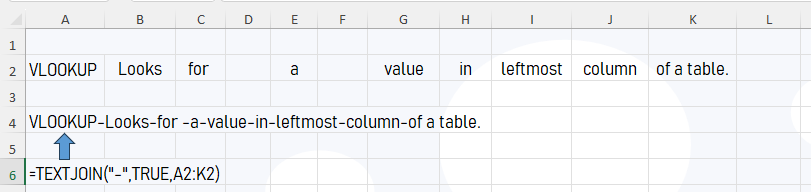
In the example above, =TEXTJOIN(“-“,TRUE,A2:K2) has joined all texts in A2:K2 range by ignoring blank cells.
10. REPT: Repeating Text
The REPT function repeats a text string a specified number of times, which can be useful for creating visualizations or padding text.
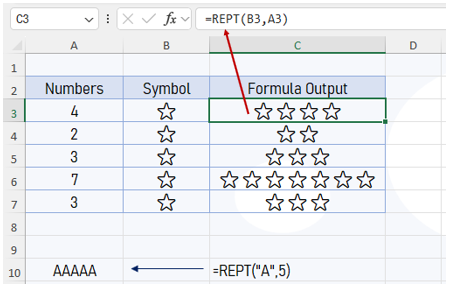
In C3 cell, =REPT(B3,A3) is used to display the star symbol 4 times. B3 cell has the star symbol and A3 has the number of repetitions. Similarly, In C10 cell, =REPT(“A”,5) formula is used to display the letter A, 5 times.
Conclusion
Excel’s text functions offer robust capabilities to manage, manipulate, and clean up text-based data. Whether you’re working with addresses, names, product IDs, or free-form text, mastering these functions will help you streamline your workflow and keep your data organized. Try incorporating these functions into your next project, and you’ll see how much easier text manipulation becomes in Excel!