Here in this tutorial, you will learn how to solve number auto change to decimal problem in Excel. This type of problem every Excel learners my face at any point of time. This happens due to some change in the setting of Microsoft Excel. If you are wondering how to solve number auto change to decimal, you are here in the right place.
See in below image illustration what exactly the problem is.
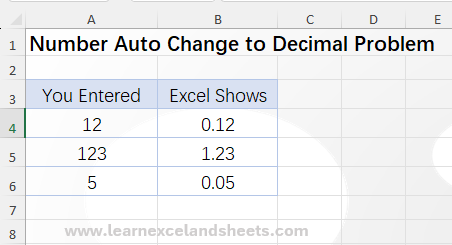
In the image illustration above, column A has the actual numbers that you try to enter in cells. Column B represents the numbers that you get after hitting enter.
Follow these steps to solve the problem.
Step 1. Click on “File” tab.
Step 2. Click on “More” then “Options.” This will open “Excel Options” window.
Step 3. Click on the “Advanced” button in left side menu.
Step 4. Uncheck the “Automatically Insert Decimal Place” option. (Alternatively, you can replace the value in box by zero)
Step 5. Click on “Ok” button.

After you complete all these steps, the problem now resolves. If you want to learn more topics for the beginners in learning Excel, please read below given articles or visit our YouTube channel.
1. Excel basic tutorial for beginners
2. Making Drop Down Menu List in Excel
3. 10 Formulas in Excel for the Beginners


