In this article, you will learn the process of how to add date picker calendar in Excel 365. By using this method, you can easily launch the calendar by clicking on a tool in Home tab, then select a date in the calendar.
Table of Contents
- Image Illustration on How it Works
- Download Add-in file
- Steps of Adding it in Excel
- Video Tutorial
Image Illustration
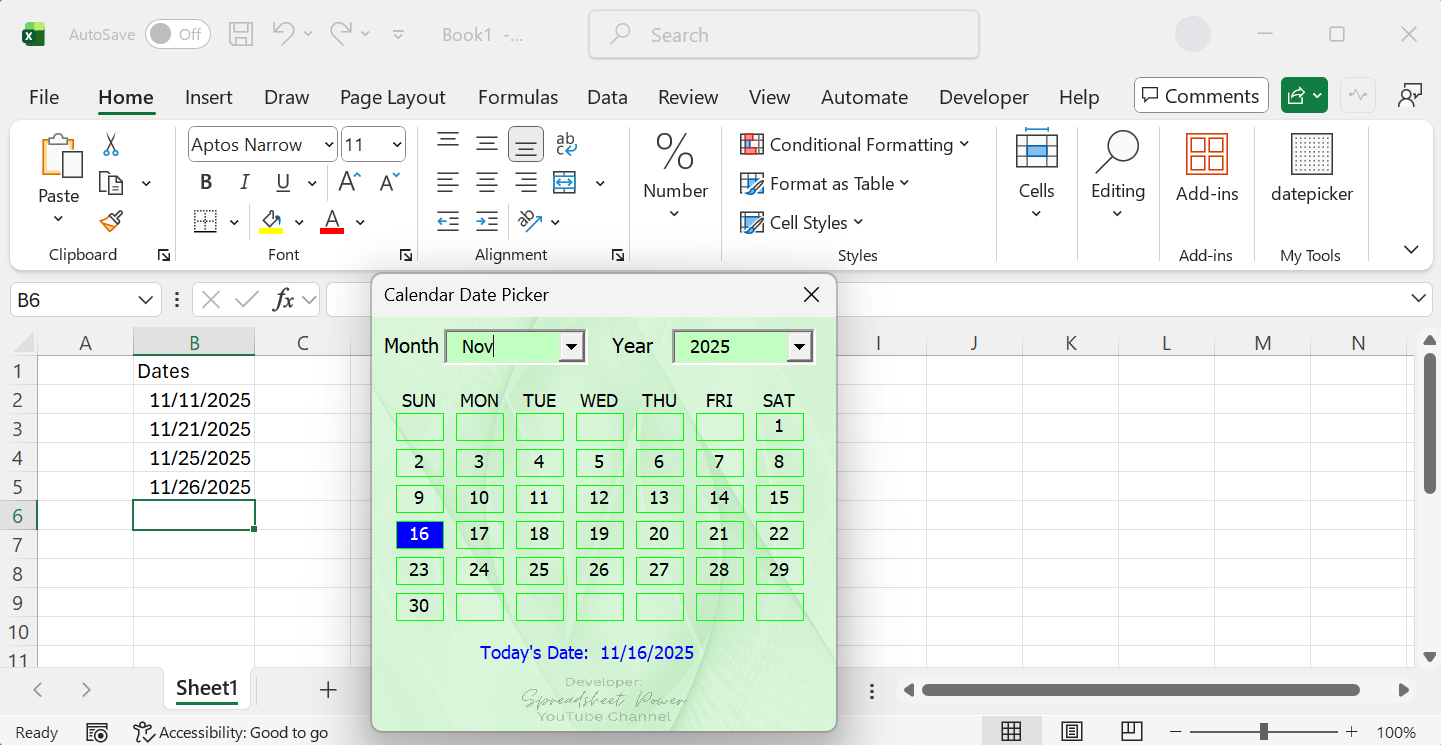
See in below image. In the Home tab of Excel, there is a button to launch the Date Picker Calendar. And, by clicking on the calendar date, date is filled in the cells.

Download Add-in File
To add date picker calendar in Excel, we need to have Add-in file. Download the file from below link. After downloading, Extract the file by right click – extract all.
Steps of Adding Date Picker in Excel
To add the date picker calendar in Excel, follow the steps given below.
- Extract the downloaded add-in file. (Right click on file, then extract all)
- Open the extracted add-in folder.
- Click on the folder address bar, select the address and copy it.
- Open Excel.
- In Excel window, click on File tab, click on Options then click on Advanced.
- Scroll down the advanced options window until you see “At startup, open all files in” option.
- In the box beside “At startup, open all files in”, paste the folder address that you copied in step 3.
- Click on Ok and close the Excel workbook.
- Re Open the Workbook, click on File tab, then Options.
- Click on Customize Ribbon.
- In the Main Tabs list, click on Home tab.
- Click on New Group, a new group will be created.
- Rename the group if you want, for example “My Tools”.
- Click on the “choose command from” drop down list and select Macros.
- You’ll see the “showcalendar” macro. Click on it.
- Click on the My Tools group you created. Then click on the Add button.
- You will see, show calendar macro in My Tools group. Click on it and rename and put a name of “Date Picker”.
- Choose an icon image that is like calendar, then click on ok buttons.
After you complete all above steps, you will see a Date picker tool in the My tools group of Home tab. Click on a cell where you want to insert date, click on Date picker tool, then select the date that you want to input in the cell.
Video Tutorial
If you want to see the video tutorial on the steps of adding date picker calendar in Excel 365, watch it below.