If you are looking for how to auto shuffle or randomize the data in Excel sheet, here we will guide you through the steps of doing this. We will do this task by using VBA code. In this article, we will focus on shuffling the data in only one column of the range.
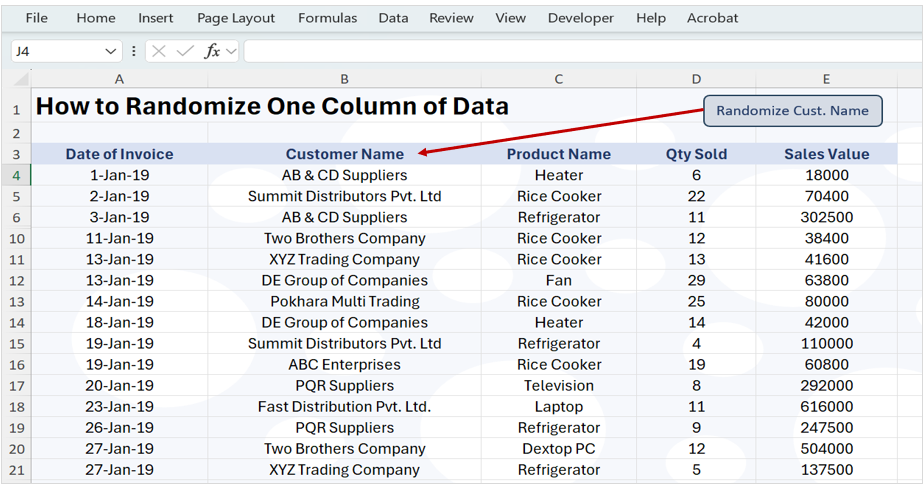
Steps of Auto Shuffle Data in Column
These are the steps you have to take to auto shuffle data.
- Prepare the data
- Create a button to shuffle data (to create button, click on insert/illustrations/shape or icon)
- Write VBA code for shuffling the data (get code from below)
- Assign the Code to the button (right click on button, click on assign macro then choose the macro)
- Save Excel workbook as macro enabled file type.
VBA Code
Copy and paste this VBA code in the module section of VBA window. After copy and paste, change the sheet name and column reference in the code. (watch video tutorial for this).
Sub RandomizeColumn()
    Dim ws As Worksheet
    Dim rng As Range
    Dim lastRow As Long
    Dim values() As Variant
    Dim i As Long, j As Long
    Dim temp As Variant


    Set ws = ThisWorkbook.Sheets("salesdata")
    lastRow = ws.Cells(ws.Rows.Count, 2).End(xlUp).Row
    Set rng = ws.Range("B4:B" & lastRow)
    values = rng.Value
    For i = LBound(values, 1) To UBound(values, 1)
        j = Application.WorksheetFunction.RandBetween(LBound(values, 1), UBound(values, 1))
        temp = values(i, 1)
        values(i, 1) = values(j, 1)
        values(j, 1) = temp
    Next i
    rng.Value = values

End Sub
Video Tutorial
For step-by-step guideline on how to do this, watch our YouTube video tutorial.
Saving File as Macro Enabled Workbook
Since the workbook contains VBA code, you have to save your workbook as macro enabled file type to save this functionality permanently in the workbook. For this follow these steps.
- Click on File tab.
- Click on Save As.
- In the file type list, select Excel macro enabled file type
- Choose the location to save the file
- Click on save button
Sample Data for Practice
If you want to practice this, download the sample workbook file from below download button.