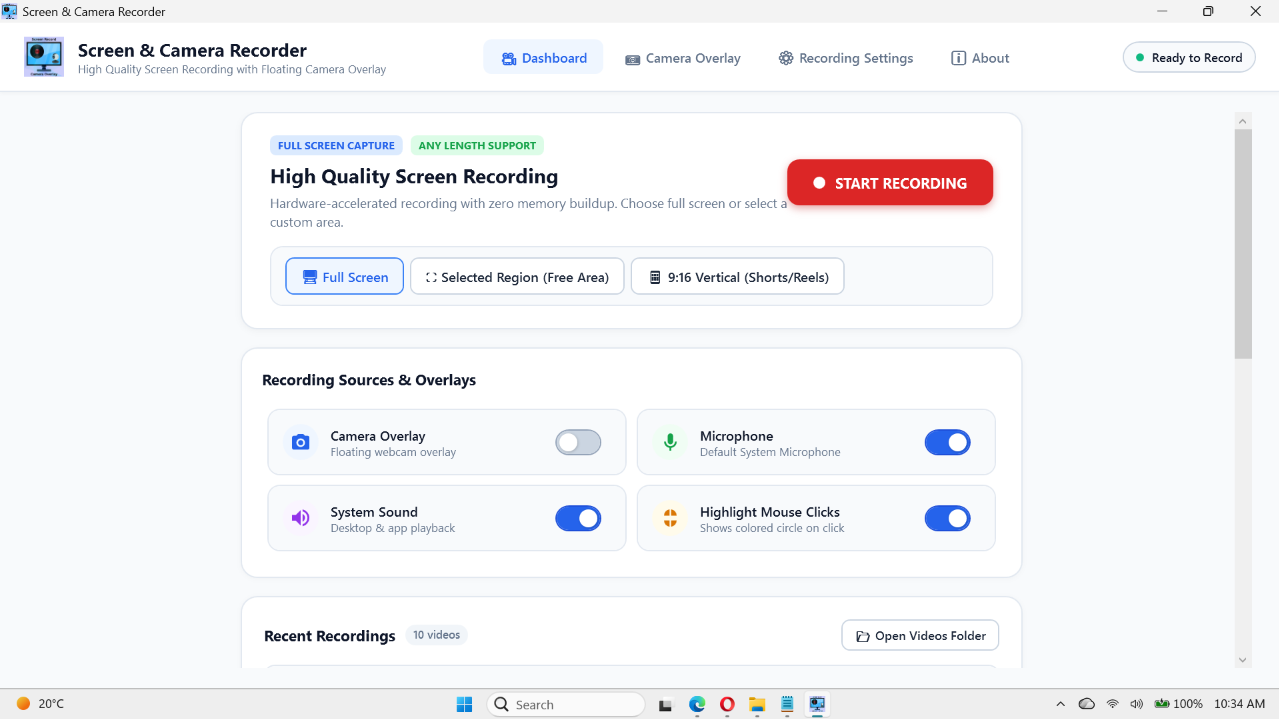
Whether you are crafting high-converting software walkthroughs, teaching online courses, recording bug reports, or creating viral content for TikTok and YouTube Shorts, finding the right desktop recording tool often feels like a compromise. Traditional tools are either bogged down with steep subscription fees, complicated interfaces, or bloated software architectures that drag down system performance. Screen & Camera Recorder changes that dynamic entirely by delivering a lightweight, native Windows screen capture powerhouse engineered with modern .NET and WinUI Fluent Design.
Equipped with intelligent 9:16 vertical video recording, an always-on-top floating facecam overlay, zero-interference real-time annotation tools, and multi-stage DSP audio noise cancellation that silences laptop fans and background hiss, this utility provides everything creators and professionals need to produce broadcast-grade video directly on their local PC. Here is an in-depth look at the standout feature highlights that make this application an essential addition to your Windows workflow.
1. Three Versatile Capture Modes for Every Content Format
Modern video creators rarely stick to just one aspect ratio. Between widescreen monitors, desktop application windows, and mobile-first platforms, flexibility is paramount. Screen & Camera Recorder eliminates the need for post-production cropping by providing three dedicated capture workflows:
- Full Monitor Capture: Record your entire desktop in native resolution up to 4K with smooth, high-framerate playback. Perfect for multi-window demonstrations, gaming sessions, and operating system tutorials.
- Custom Area Selection: An interactive, drag-and-select region recorder highlighted by clean dashed boundary guidelines. Capture only the specific application window, code editor, or browser view you want your audience to focus on.
- 9:16 Vertical Video Mode (With Auto-Centering): Tailor-made for social media creators publishing to YouTube Shorts, Instagram Reels, and TikTok. Unlike conventional tools that force you into landscape mode, this built-in portrait mode dynamically centers on your mouse cursor in real time, keeping your active workflow dead-center on vertical smartphone screens.
2. Always-On-Top Floating Webcam Overlay with Live Styling
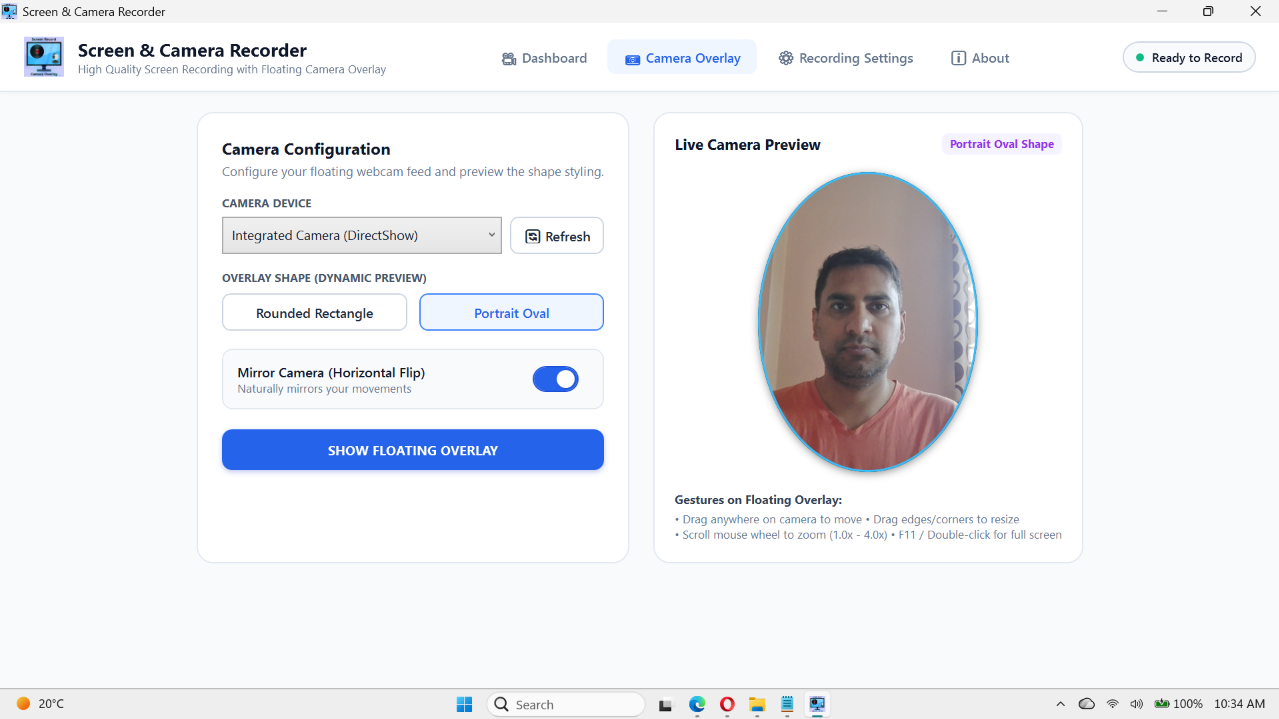
Audience engagement skyrockets when viewers can see your facial expressions and reactions. The built-in webcam system in Screen & Camera Recorder functions as an independent, floating overlay designed to give you studio control without intrusive setup steps:
- Modern Profile Shapes: Switch effortlessly between a classic 16:9 Rounded Rectangle and an ultra-modern Portrait Oval that clips neatly around your face. Real-time visual previews in the settings panel allow you to dial in your camera look before hitting record.
- 8-Way Edge & Corner Resizing: Native cursor handles allow you to effortlessly scale your facecam window from a subtle corner avatar to a prominent presentation feed.
- Smooth Digital Zoom (1.0x to 4.0x): Adjust your shot composition on the fly using intuitive zoom controls or quick mouse-wheel scrolling directly over the camera feed.
- Hardware Mirroring (⇄): Flip your camera horizontally with a single click to ensure natural eye contact and hand gestures during tutorials and presentations.
- Intelligent Auto-Docking: When switching into Selected Area or 9:16 Vertical mode, the webcam automatically repositions itself within the recorded boundary, preventing your facecam from getting cut off at the edge of the frame.
3. Live On-Screen Annotation & Visual Highlighting
Presenting technical material or guiding trainees through software interfaces requires direct visual emphasis. Screen & Camera Recorder integrates a real-time drawing engine directly into your recording session, eliminating the need to add arrows or callouts in video editing software later.
The annotation suite includes rectangular highlight boxes, perfect squares, circles/ellipses, directional arrows, text underlines, and a translucent freehand highlighter. Users can customize annotations using six vibrant colors (Yellow, Crimson Red, Emerald Green, Sky Blue, Violet, and Pure White), toggle soft semi-transparent fills, and adjust stroke thickness (2px, 4px, or 7px) with instant undo (Ctrl+Z) functionality.
4. Zero-Interference Recording with Windows Capture Exclusion
One of the most common frustrations with desktop screen recording software is control bar clutter—buttons, timers, and toolbars ending up baked into the final output. Screen & Camera Recorder solves this cleanly through native Windows API exclusion (WDA_EXCLUDEFROMCAPTURE).
Both the compact floating recording bar (which shows live elapsed duration and audio activity) and the entire drawing toolbar are hidden from the capture pipeline. You get complete on-screen control while your audience sees only a pristine, distraction-free video recording.
5. Advanced DSP Audio Noise Cancellation: Silence Fan and Wind Noise
Poor audio ruins good video. Laptop cooling fans, air conditioning rumble, wind buffeting, and microphone breath pops frequently introduce distracting background noise into recordings. Screen & Camera Recorder tackles this problem at the driver level with a proprietary multi-stage Digital Signal Processing (DSP) audio engine:
- 4th-Order High-Pass Butterworth Filter (fc = 135 Hz): Aggressively strips out mechanical fan vibration, desk rumble, and wind buffeting below human vocal registers without thinning your voice.
- Acoustic Distance Gating & Multi-Band Suppression: Attenuates ambient room noise and room reflections into complete, clean silence during natural speech pauses.
- Voice Presence Enhancer & Peak Limiter: Automatically boosts vocal clarity and intelligibility while a transparent soft-knee limiter prevents sudden shouting or loud spikes from clipping and distorting.
- Mono Downmixing: Eliminates phase-cancellation issues and weird swirling artifacts caused by multi-microphone laptop arrays.
6. Hardware-Accelerated Performance & Offline Privacy
Resource efficiency and user data privacy are core pillars of the application’s architecture. Leveraging Windows Media Foundation hardware encoders (GPU-accelerated H.264/HEVC), the software achieves ultra-low CPU overhead during intensive tasks like gaming or code compilation.
Users can select tailored encoding profiles ranging from Compact (storage-friendly file sizes) to Ultra (up to 16 Mbps for pristine 4K fidelity) paired with 192 kbps high-fidelity AAC audio. Best of all, the entire recording and encoding pipeline runs 100% locally and offline. There are no cloud uploads, mandatory user logins, or background telemetry tracking your activity.
Feature Comparison & Specifications Summary
| Feature Category | Capability & Highlights | User Benefit |
|---|---|---|
| Capture Profiles | Full Display, Custom Region, and 9:16 Vertical Video | One-click creation for 4K desktop tutorials or mobile Shorts and Reels. |
| Camera Overlay | Rounded Rectangle & Portrait Oval shapes with 1.0x–4.0x zoom and flip | Personalized, studio-quality facecam integration without greenscreens. |
| Live Annotations | Boxes, arrows, circles, underline, highlighter (6 colors, 3 stroke sizes) | Highlight critical steps in real time without post-production editing. |
| Audio Engine | 4th-order 135 Hz Butterworth filter, noise gate, limiter, voice boost | Eliminates loud laptop fan noise and room hiss for crystal-clear narration. |
| UI Privacy | Native WDA_EXCLUDEFROMCAPTURE control bar exclusion | Toolbars and recording timers never bleed into the final recorded MP4. |
| Shortcuts & Controls | Global hotkeys: F9 (Record/Stop), F10 (Pause/Resume), Esc (Exit Drawing) | Seamless background control without switching away from your active work. |
| Data Privacy | 100% offline, local GPU encoding, zero analytics or telemetry | Confidential workflows, code, and sensitive documents stay private. |
Streamlined File Management with Built-in Library
Staying organized is straightforward thanks to the integrated Recent Recordings Manager. Once you wrap up a capture session, your video immediately appears in a cleanly indexed list displaying exact timestamps and file sizes. From there, you can launch a 1-click preview in your default media player, jump directly to the target file in Windows File Explorer, or clear out unneeded takes without leaving the application.
Frequently Asked Questions (FAQ)
Can I record 9:16 vertical videos for YouTube Shorts and TikTok on a standard widescreen monitor?
Yes. The dedicated 9:16 Vertical Mode isolates a mobile-optimized vertical viewport directly on your desktop screen. Furthermore, its dynamic mouse-tracking algorithm automatically pans the viewport with your cursor movements, ensuring that your audience always sees the active area of your screen without manual readjustment.
Does the floating webcam overlay work over full-screen games and presentations?
Yes. The camera window utilizes Windows always-on-top rendering, keeping your facecam visible over slide decks, web browsers, terminal sessions, and borderless windowed games.
How does the audio filter eliminate laptop cooling fan noise?
The integrated DSP pipeline applies a 4th-order Butterworth high-pass filter tuned at 135 Hz. Because laptop fan motors, desk vibrations, and airflow buffeting produce low-frequency mechanical rumble below this cutoff, they are filtered out before reaching the AAC encoder, leaving your vocal frequencies crisp and intelligible.
Install Software
Install the software/app directly from Microsoft Store from below link.
Looking for only the camera overlay without screen recording? check out this app available in Microsoft Store⬇️
https://apps.microsoft.com/detail/9P12TL2QJ78F?hl=en-us&gl=NP&ocid=pdpshare