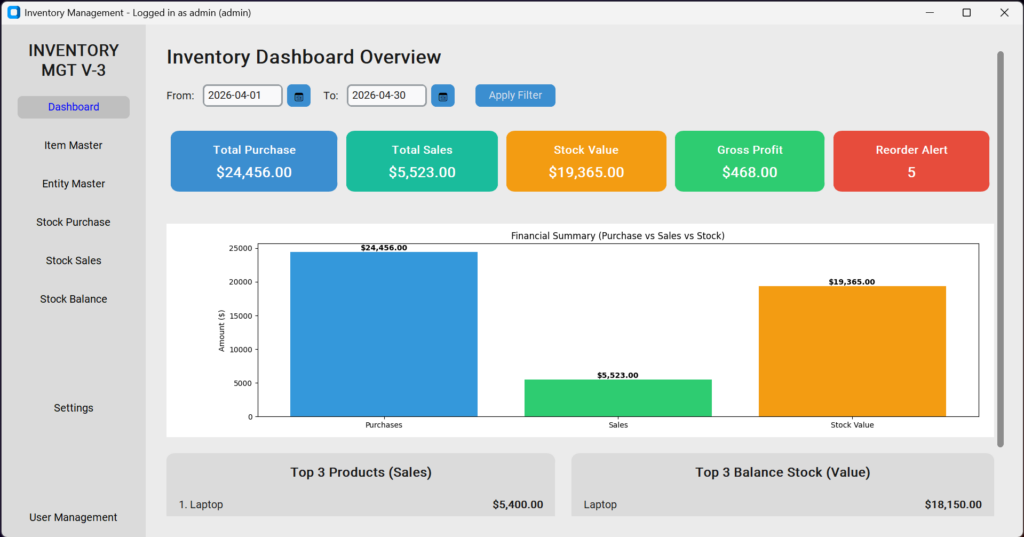
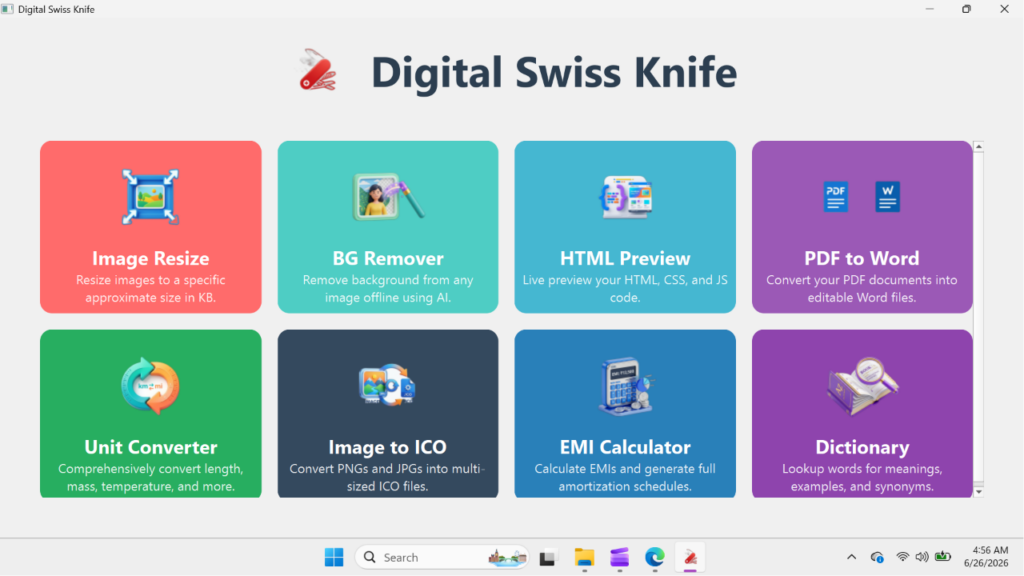
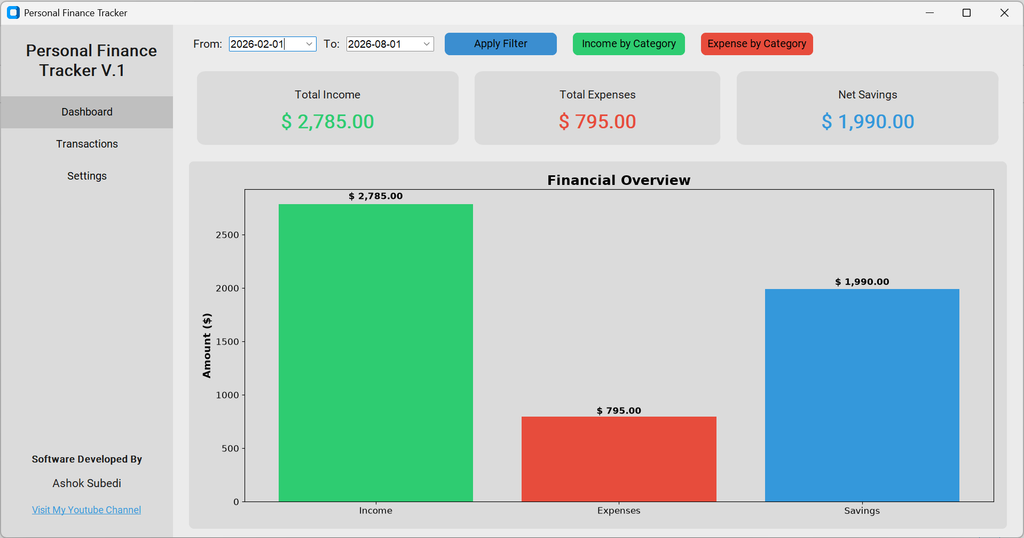
Whether you are creating software tutorials, presenting slides to students, pitching a proposal to clients, or streaming gameplay, adding your face camera over your screen recording makes your content significantly more engaging, personal, and professional.
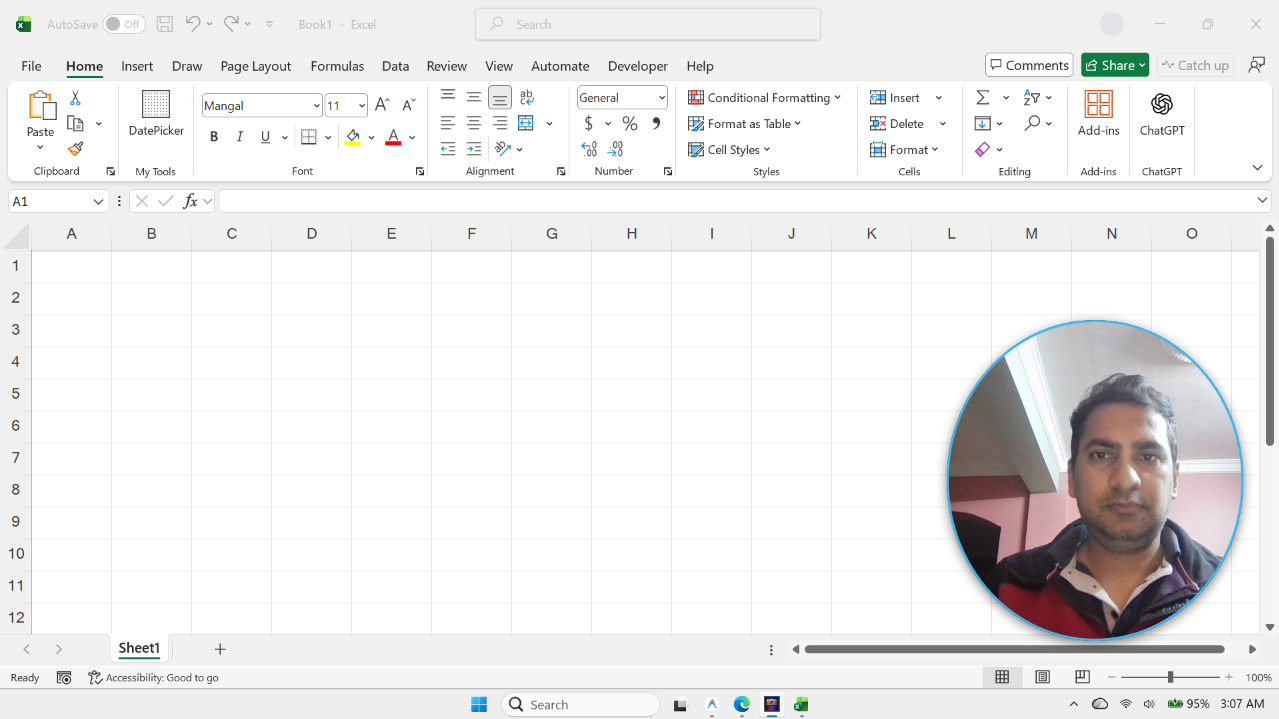
However, many creators struggle with heavy, overly complicated broadcasting suites like OBS Studio, or find that built-in screen recorders either don’t support webcam picture-in-picture (PiP) or lock your camera into an unmovable, rigid box. Fortunately, there is a far simpler, lightweight solution: using a dedicated always-on-top floating utility called Camera Overlay.
In this comprehensive guide, you’ll learn how to overlay your face camera with screen recording on a PC effortlessly, how it works with any screen recording software, and the powerful features and benefits of using Camera Overlay.
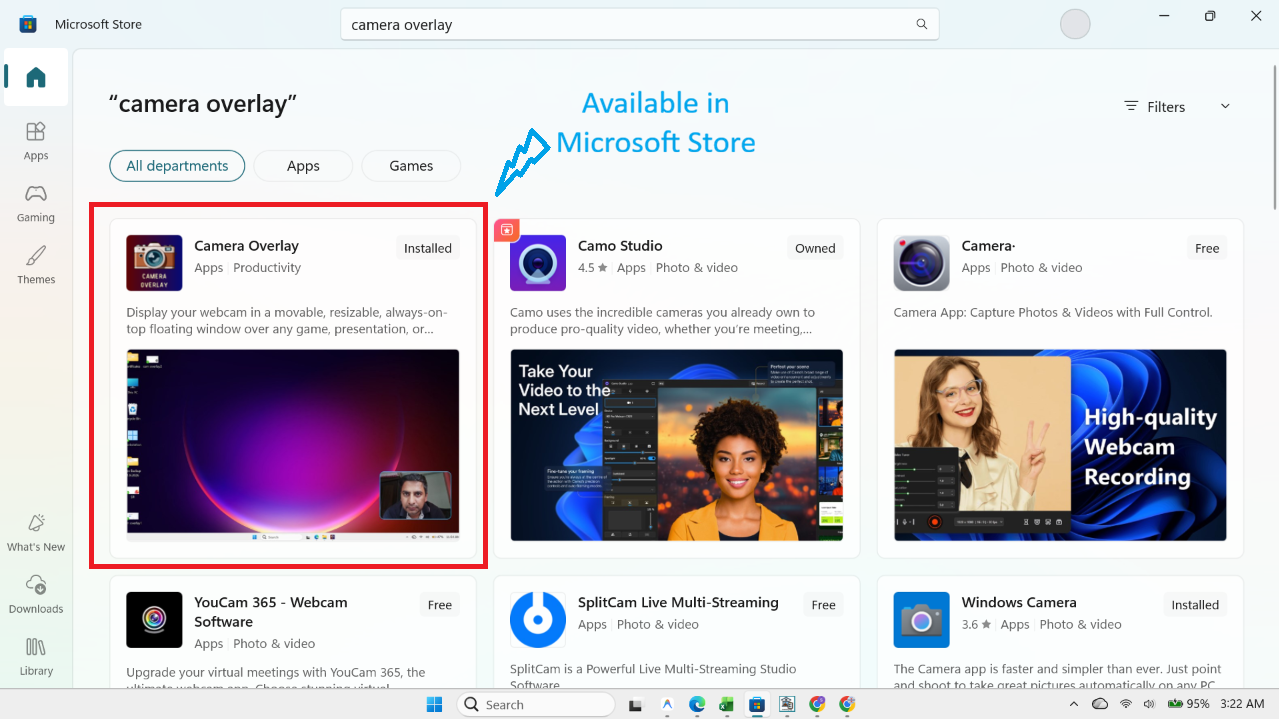
This Camera Overlay application you can download and install directly from Microsoft Store. Link is given at the bottom of the article.
Why Overlay a Face Camera During Screen Recording?
Studies show that viewers stay engaged up to 3x longer when they can see the presenter’s facial expressions, gestures, and eye contact. Here is why adding a facecam overlay transforms your screen recordings:
- Builds Trust and Human Connection: Seeing the person behind the screen establishes rapport with your audience, students, or team members.
- Boosts Viewer Retention: Plain screen captures can quickly become monotonous. A dynamic, floating camera feed keeps eyes focused on the presentation.
- Highlights Non-Verbal Cues: Hand gestures, nods, and expressions reinforce key takeaways in technical tutorials and business meetings.
- Universal Compatibility: When your camera floats natively on your desktop, any screen recorder (Windows Game Bar, Snipping Tool, OBS, Loom, Camtasia, Bandicam) automatically records your face without complex audio/video synchronization.
What is Camera Overlay?
Camera Overlay is a modern, lightweight Windows desktop application built to display your webcam feed in an always-on-top, floating window over any application, presentation, game, or full-screen desktop software.
Unlike bulky broadcasting tools that consume heavy CPU and GPU resources, Camera Overlay is designed solely to do one job with surgical precision: keep your webcam floating right where you want it, exactly at the size and shape you want, while you work or record your screen.
How to Overlay Face Camera With Screen Recording in PC (Step-by-Step)
Setting up your face camera overlay on Windows takes less than 30 seconds. Follow these simple steps:
Step 1: Launch Camera Overlay
Open Camera Overlay on your Windows PC. The app greets you with a clean, distraction-free dashboard showing your active camera status and quick setup controls.
Step 2: Choose Your Webcam & Overlay Shape
Click on Settings to customize your camera look:
- Select Camera Source: Choose from integrated webcams, external USB cameras, virtual cameras, or capture cards.
- Mirror Camera: Enable the horizontal flip toggle so your movements feel natural, just like looking in a mirror.
- Pick Your Shape: Select between the classic Rounded Rectangle (widescreen 16:9) or the sleek Vertical Oval (modern portrait facecam curvature).
Step 3: Start the Overlay & Position Your Facecam
Click Start Overlay. The main window automatically minimizes, and your floating webcam immediately appears at the bottom-right corner of your screen.
- Drag to Move: Simply click and drag anywhere on the camera window to park it in any corner or side of your screen.
- Resize to Any Size: Hover over any edge or corner of the camera window and drag to make your facecam smaller or larger.
- Zoom In / Out: Scroll your mouse wheel or click the
+/-buttons to frame your face perfectly without showing messy room backgrounds.
Step 4: Launch Any Screen Recording Tool
Because Camera Overlay is an Always-On-Top window, you can open any screen capture software you already use:
- Windows Game Bar: Press Win + Alt + R to record your entire screen.
- Windows Snipping Tool: Choose “Record” and capture your full desktop.
- OBS Studio / Bandicam / Camtasia / Loom: Simply select “Display Capture” or “Screen Record”.
Your screen recorder will capture your desktop and your stylish floating facecam simultaneously in flawless synchronization!
Core Features of Camera Overlay
What makes Camera Overlay the preferred choice over standard webcam software? Here are its flagship features:
1. Guaranteed Always-On-Top (Topmost Window)
No more digging through minimized windows. Camera Overlay stays pinned firmly on top of PowerPoint slides, full-screen spreadsheets, PDF readers, web browsers, IDEs, and desktop games.
2. Two Modern Display Styles (Rounded Rectangle & Vertical Oval)
Tired of boxy, sharp-edged video windows? Camera Overlay gives you two designer aesthetics:
- Rounded Rectangle: Sleek 16:9 widescreen presentation with smooth, modern rounded corners.
- Vertical Portrait Oval: A contemporary vertical ellipse style that cuts out unnecessary side clutter and focuses cleanly on the speaker’s face.
3. Pixel-Perfect Centered Framing (Never Crops Off-Center)
When you resize the window or switch shapes, Camera Overlay’s intelligent layout engine mathematically pins the central subject to the exact center of the frame. Your face always remains centered regardless of how wide, tall, or small you scale the window.
4. Smooth Zoom Control (1.0x to 4.0x)
Crop out distracting room surroundings in seconds. Use the subtle on-screen buttons or simply scroll your mouse wheel over the video feed to zoom smoothly from 1.0x up to 4.0x.
5. Hardware-Accelerated Mirroring
Standard webcam feeds can feel awkward when pointing left means your hand moves right on screen. With one click on the mirror toggle (⇄), your video flips horizontally for natural eye contact.
6. Ultra-Compact, Non-Intrusive Faded Controls
Unlike other utilities with bulky title bars and distracting menus, Camera Overlay uses micro-sized, semi-transparent buttons that stay faded during recording and only highlight when you hover directly over them.
7. Instant Full-Screen Mode
Need to switch from a corner facecam to addressing your audience full-screen? Simply double-click the overlay window or press F11. Press ESC to pop back to your small corner overlay instantly.
8. 100% Privacy & Offline Security
Your privacy is absolute. Camera Overlay renders your video stream directly in local RAM. It never records, saves, or transmits your video feed to any cloud or external server.
Key Benefits of Using Camera Overlay
| Feature / Benefit | Traditional Setups (OBS / Built-in Recorders) | Camera Overlay |
|---|---|---|
| System Resources | Heavy CPU & GPU usage, can lag games/apps | Ultra-lightweight native WPF C# architecture |
| Setup Time | 10–20 minutes configuring scenes & audio | Under 10 seconds — launch and start overlay |
| Window Movability | Locked in recording scene; cannot drag live | Freely movable with real-time click and drag |
| Overlay Shapes | Standard sharp rectangle unless masked | Built-in Rounded Rectangle & Vertical Oval |
| Universal Recording | Limited to recording inside one software | Works with ANY screen recorder or meeting app |
Who is Camera Overlay Best For?
- Educators & Course Creators: Record engaging lessons over PowerPoint, Excel, or web browsers without losing the face-to-face connection with your students.
- Software Developers & Tech Reviewers: Demonstrate code, web apps, or digital tools with a clean, unobtrusive facecam in the corner.
- Business Professionals: Give remote client demos, sales pitches, and onboarding walkthroughs that look polished and personal.
- Gamers & Streamers: Add a quick, zero-lag facecam above your PC games without complex multi-monitor streaming setups.
Frequently Asked Questions (FAQ)
Can I move the camera overlay while recording?
Yes! You can click and drag the camera overlay anywhere on your screen at any time during your recording without interrupting your video feed.
Does Camera Overlay work with PowerPoint in slide show mode?
Yes. Because the window is strictly Topmost, it stays floating over full-screen PowerPoint presentations, Google Slides, and full-screen PDF viewers.
Does Camera Overlay record my audio or video?
No. Camera Overlay is a display utility that renders your video feed on top of your screen. Your recording software (such as Windows Game Bar, OBS, or Snipping Tool) records the video and microphone audio directly.
What Windows versions are supported?
Camera Overlay is built for Windows 10 and Windows 11 (64-bit), supporting all standard USB webcams, integrated laptop cameras, and capture cards.
Conclusion
Overlaying your face camera with screen recording on a PC doesn’t have to be complicated, resource-heavy, or expensive. With Camera Overlay, you get an always-on-top, movable, resizable facecam that works with any recording software or live presentation in seconds.
Upgrade your tutorials, lectures, and screen recordings today with Camera Overlay and give your audience the personal, polished presentation they deserve!
Install From Microsoft Store
Want to try this Camera Overlay Application? Download it from Microsoft Store from below button.
Video Tutorial
Check out the complete feature and operating guide tutorial in YouTube.