In this tutorial we will learn how to convert the numbers to words for any currency value in Excel.
Since there is not any in built function in Excel to convert the currency numbers to words, we need to create a custom function by using VBA code.
In the below image animation, the numbers are converted into US Dollar and Cents. We can make it for your country’s currency name by simply modifying the code.

Let’s start with the process.
Step1. Get the VBA code for converting number to word. Download it from the link at the end of this tutorial.
Step 2. If your currency is US Dollar and Cents, you are good to go. If not, edit the function name and your currency unit and subunit name in the downloaded code file.
Step 3. Install the edited code in the “Module” of Excel’s VBA.
Step 4. Test the function.
Step 5. Save your Excel workbook as “Macro Enabled” file type.
Editing the Code File to Convert Currency Numbers to Word
The code file will be downloaded in zip folder. Unzip it by right click and “Extract All”

Open the extracted notepad file. In first code line, there is a function name “SpellUSD”, change it to your own. Scroll down and whenever you see SpellUSD, change it.
For Example, if your currency name is “Omani Riyal”, replace “SpellUSD” by “SpellOmaniRiyal”

Now, locate the value “US Dollar” and “Cents” and replace it by your currency “Unit Name” and “Sub Unit Name”. Please note that this replacement you have to for all the occurrence of “US Dollar” and “Cents” throughout the entire code.

After all replacements, save it by pressing Ctrl + S or File > Save.
Install Code in VBA Required for Converting Number to Word
To Install code into VBA, follow these steps.
Step1. Click on “Developer” tab of Excel.
Step 2. Click on “Visual Basic”

Step 3. Click on “Insert” tab of VBA window.
Step 4. Click on “Module”

Step 5. Select All and Copy the code from notepad file.

Step 6. Paste the code in “Module Page”
Step 7. Close the VBA editor window.

Now, code is added to VBA, test the function by writing a number in a cell, in the next cell use the function. If everything is fine, save the file as macro enabled file.
Saving File as Macro Enabled
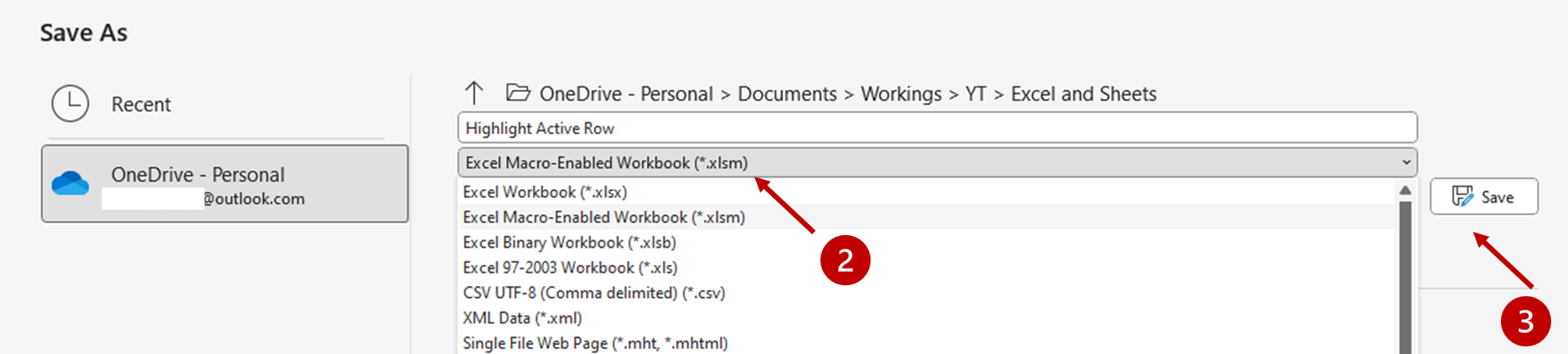
Since the excel workbook now contains VBA code, we have to save it as macro enabled file. Follow the steps below to save.
Step 1. Click on “File” tab then “Save As”
Step 2. In the File type, choose “Excel Macro Enabled Workbook”
Step 3. Click on “Save” button.

Download the Code Notepad File from below.