This article covers the guideline on how to calculate SUM of numbers from every other or alternative columns or rows in Microsoft Excel. Here I will explain the VBA method of doing this by creating a custom function i.e =SumAlternate().
Although, we can do it using combination of built in functions in Excel. If you are interested on this, watch the video tutorial from below link.
Requirement
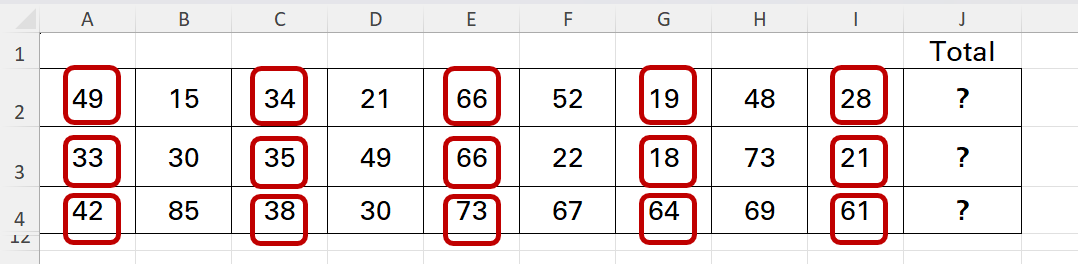
In below Example, there are some random numbers in the rows 2, 3 and 4. Requirement is to calculate the total of numbers from every alternative cell as highlighted. The cell could be either in even or odd column of the range. So, the formula should be able to incorporate the “odd” or “even” type of the cell.
How the Function Works
See in below image animation how the custom function works.
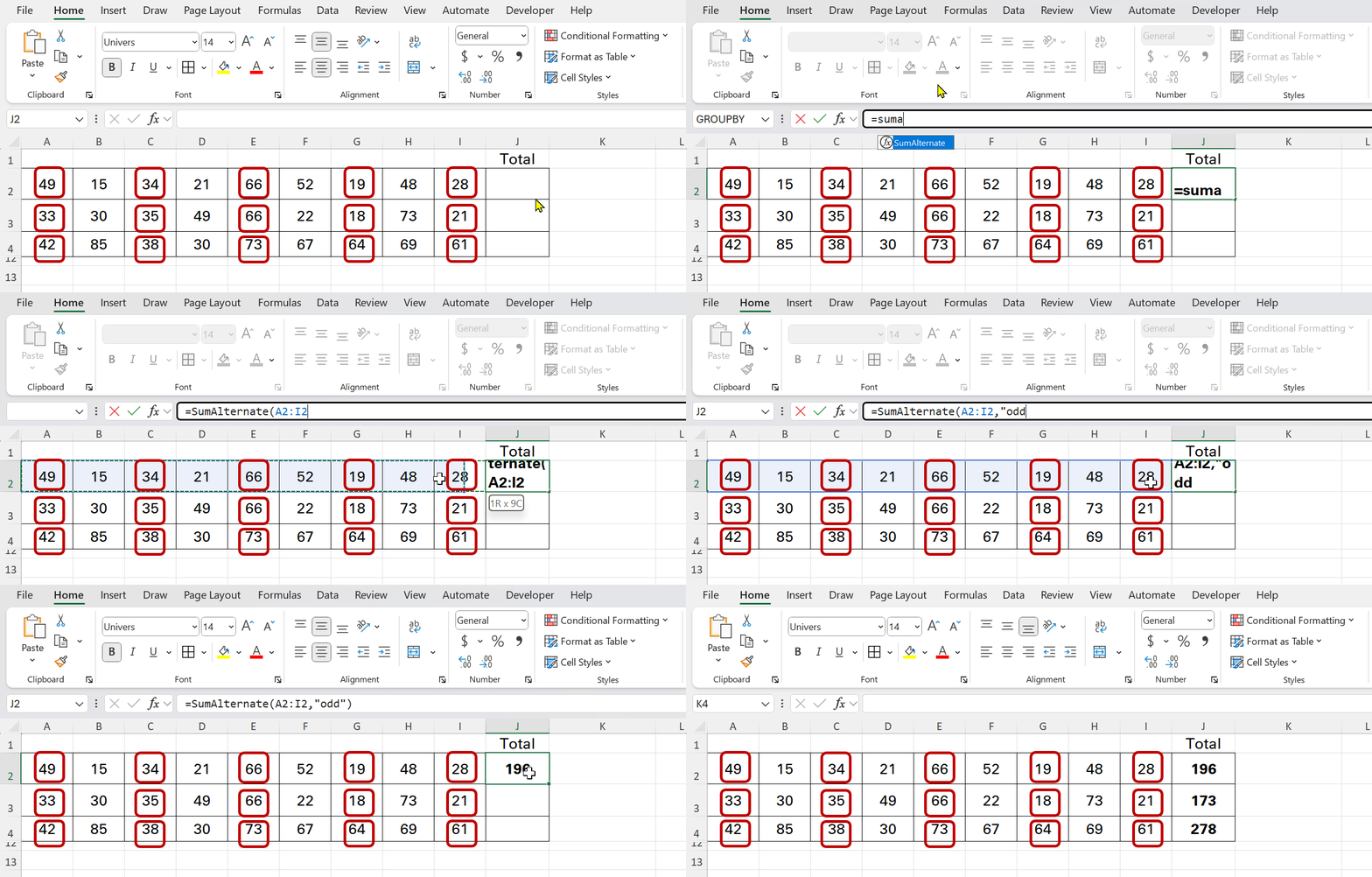
In the animation, you can see the SumAlternate function is able to calculate the total of numbers from every alternative odd columns i.e 1st, 3rd, 5th, 7th and 9th. If you change the second parameter to “even”, it will calculate the total of numbers from the 2, 4, 6 and 8th column. In case of calculating SUM from every alternative row also, same function can be applied.
How to Create the Function
The function discussed above is not a built in Excel function. We need to make this function by using the VBA programming. The required VBA code you can copy from the end of this article.
Follow these steps to make the custom function.
- Copy the VBA code.
- In Excel, click on Developer tab, then Visual Basic.
- In VBA, click on Insert tab, then Module.
- In the module page, paste the copied code, then close the VBA window.
- You should see the SumAlternate function in the function list. Use the function as shown in above image animation.
- To save the custom function in the workbook, save the workbook as macro enabled Excel file (File/Save As/Excel Macro Enabled File [xlsm]).
Required VBA Code
Copy the required VBA code from below.
Function SumAlternate(rng As Range, Optional choice As String = "odd") As Double
    Dim i As Long
    Dim total As Double
    Dim cellCount As Long
    Dim cellValue As Variant

    ' Convert choice to lowercase for consistency
    choice = LCase(Trim(choice))

    ' Validate input
    If choice <> "odd" And choice <> "even" Then
        SumAlternate = CVErr(xlErrValue)
        Exit Function
    End If

    ' Count total cells in the range
    cellCount = rng.Cells.Count

    ' Loop through each cell in the range
    For i = 1 To cellCount
        cellValue = rng.Cells(i).Value

        ' Only process numeric cells
        If IsNumeric(cellValue) And Not IsEmpty(cellValue) Then
            Select Case choice
                Case "odd"
                    If i Mod 2 = 1 Then total = total + cellValue
                Case "even"
                    If i Mod 2 = 0 Then total = total + cellValue
            End Select
        End If
    Next i

    ' Return the total
    SumAlternate = total
End Function